Working from home can feel comfortable until your shoulders tighten and your wrists begin to ache. A dining chair, laptop, and bright window often create hidden strain. This guide explores seven practical tips for building a healthier workstation without buying expensive equipment. The key question is simple: How to set up an ergonomic workstation at home?
An ergonomic setup supports a neutral posture, clear vision, and frequent movement. Your monitor should sit near eye level, with the top of the screen roughly aligned with your eyebrows. Keep the screen about an arm’s length away. Your elbows should rest close to your body, bent near 90 degrees. Place both feet firmly on the floor, or use a stable footrest. Small changes matter.
These recommendations reflect common occupational health guidance and practical observations from home-office use. A separate keyboard and mouse can reduce wrist bending when you use a laptop for long periods. A chair with adjustable height and lumbar support may help, but no chair fixes every problem. I still shift position more often than planned, and that is part of the lesson. Ergonomics is not about holding one perfect posture all day. It is about changing positions, reducing awkward angles, and noticing discomfort early. The following tips explain how to arrange your desk, lighting, chair, screen, and daily breaks. They also acknowledge real limitations, including small rooms, shared tables, and limited budgets. Your body notices.
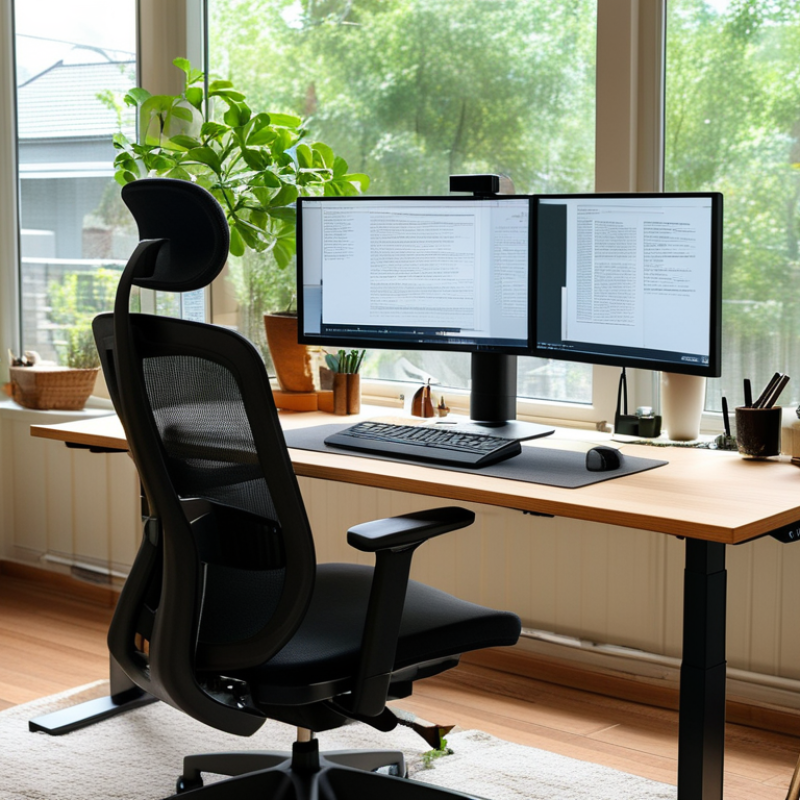
Before changing your home workstation, observe how you actually work. Track your posture for one ordinary day, not an ideal one. Notice whether you lean toward the screen, raise your shoulders, or twist to reach documents. These habits reveal more than a quick checklist.
I once adjusted my chair but ignored my habit of balancing a phone between my shoulder and ear. Neck tension continued. That mistake changed my assessment.
Record when discomfort appears. Is it after video meetings, detailed reading, or long typing sessions? Check for headaches, wrist pressure, lower-back fatigue, and numbness. Short notes can expose patterns. Your body is giving useful evidence.
Match the setup to your tasks. Frequent typing may require relaxed shoulders, level wrists, and enough desk space for your forearms. Regular reading may require a screen positioned near eye height.
If you switch between a laptop and paper files, your neck may repeatedly bend downward. An external keyboard or document holder could reduce that strain. I am still imperfect here; convenience sometimes wins over good posture. That is worth noticing, not hiding.
Measure your work area, too. Your feet should rest steadily, while your knees remain comfortably bent. Keep commonly used items within easy reach. Test one change at a time, then reassess after several workdays.
Persistent pain, weakness, or numbness deserves advice from a qualified healthcare professional. Ergonomics should respond to your real behavior, not a picture-perfect desk.
A supportive home workstation starts with fit, not appearance. Your desk should let your forearms rest level while your shoulders stay relaxed. Sit close enough to keep your elbows near your sides. Leave roughly two fingers of space between your knees and the desk underside. I learned this after using a beautiful desk that pushed my shoulders upward. It looked professional. My neck disagreed.
Choose a chair with adjustable height, a stable backrest, and suitable seat depth. Keep both feet flat on the floor, with your hips slightly higher than your knees. The lumbar support should meet your lower back’s natural curve without forcing it forward. If your feet dangle, use a firm footrest. Avoid locking your knees. Small adjustments matter more than expensive materials.
Test the desk and chair for a full work session, not just five comfortable minutes. Notice pressure behind your knees, raised shoulders, or a head drifting toward the screen. Workplace ergonomics guidance supports changing posture regularly rather than searching for one perfect position. An ergonomics professional can assess ongoing pain or difficult body mechanics. I still catch myself leaning forward during demanding tasks, so I place a small reminder near the keyboard. It helps, but it does not replace awareness.
| Tip | Workstation Area | Recommended Setup | Useful Measurement or Check | Why It Matters |
|---|---|---|---|---|
| 1 | Choose the right desk height | Use a desk that allows your elbows to remain close to your sides while your forearms rest approximately parallel to the floor. | Elbow angle: about 90–110° Wrists should remain straight rather than bent upward or downward. |
Supports a neutral upper-body position and may reduce unnecessary strain on the shoulders, arms, and wrists. |
| 2 | Select a supportive chair | Choose an adjustable chair with a stable five-point base, a firm seat, adjustable height, and back support that follows the natural curve of the lower back. | Seat height: feet should rest flat on the floor, with knees level with or slightly below the hips. | A properly adjusted chair helps distribute body weight and encourages a more balanced sitting posture. |
| 3 | Keep the monitor at eye level | Place the primary monitor directly in front of you, with the top of the screen near eye level. Tilt it slightly upward if needed to reduce glare. | Viewing distance: approximately 50– เช่น 75 cm Keep the screen centered with your body. |
Helps limit repeated neck flexion and excessive head turning during computer work. |
| 4 | Position the keyboard and mouse correctly | Place both devices close enough that your elbows stay near your torso. Keep the keyboard flat or only slightly tilted. | Elbows: close to the body Wrists: neutral and supported by the forearms, not pressed against a sharp desk edge. |
Reduces reaching and awkward wrist angles that can contribute to discomfort during extended computer use. |
| 5 | Support your feet | Keep both feet flat on the floor. If the chair is raised and your feet do not reach comfortably, use a stable footrest. | Knee position: approximately 90° or slightly greater Maintain comfortable space behind the knees. |
Provides a stable base and can reduce pressure caused by dangling feet or excessive seat height. |
| 6 | Arrange lighting to reduce glare | Position the monitor perpendicular to windows when possible. Use adjustable room lighting or a task lamp aimed at documents rather than directly at the screen. | Check: no bright reflections or strong contrast between the screen and surrounding area. | Improves visual comfort and may help reduce squinting, eye fatigue, and forward head movement. |
| 7 | Change position regularly | Alternate between sitting and standing when practical, take brief movement breaks, and avoid remaining in one posture for long periods. | Practical habit: stand, stretch, or walk briefly every 30–60 minutes. | Movement breaks reduce static loading and encourage circulation, comfort, and healthy work habits. |
Your body notices small workstation errors before your schedule does. Set the monitor directly in front of you, about 20–40 inches away. OSHA’s Computer Workstations eTool recommends placing the screen’s top at, or slightly below, eye level. Your neck should stay neutral, not tilted toward the display.
Reduce glare by turning the screen away from windows, then adjust brightness to match the room. Keep your keyboard near elbow height, with elbows around 90–120 degrees. Let your wrists remain straight, not bent upward. Place the mouse beside the keyboard, close enough that your shoulder stays relaxed. Use light movements. A tight grip is easy to overlook. The National Institute for Occupational Safety and Health links awkward posture and repetitive force with musculoskeletal strain.
Keep both feet supported, using a stable footrest if necessary. Every 20 minutes, look 20 feet away for 20 seconds, following widely used optometric guidance. Also stand briefly each hour. The U.S. Bureau of Labor Statistics’ 2023 workplace injury report continued to identify musculoskeletal disorders as a major source of days away from work. That data is not a perfect home-office comparison, but it signals a practical risk.
Test your setup at the end of a normal workday. If your shoulders feel raised, move the mouse closer. If your eyes feel dry, increase viewing distance and blink more often. I still catch myself leaning forward during detailed tasks. A good setup needs regular correction, not one permanent adjustment.
A comfortable home workstation begins with light, not furniture. The International Commission on Illumination recommends about 500 lux for ordinary office tasks. Place a desk near a window, but keep the screen perpendicular to it. This reduces harsh reflections. Add a shaded lamp behind or beside the display. In my experience, one bright ceiling light creates tired eyes and a gloomy keyboard. I still adjust mine too often.
Sound deserves equal attention. The World Health Organization links prolonged environmental noise with sleep disruption and other health risks. Home workers may not face traffic noise, but sudden voices and appliance sounds can break concentration. Use curtains, rugs, or a full bookcase to soften echoes. Keep calls away from hard, empty walls. A simple target is steady background sound below normal conversation. Silence is not always better.
Workspace organization can reduce small physical errors. Keep the keyboard and mouse close, with frequently used items inside easy reach. ISO 9241-5 recommends supporting neutral, relaxed working postures. Put chargers in one cable channel, not across the floor. Store paper vertically and leave one clear area beside the keyboard. I once arranged everything beautifully, then ignored the setup during busy weeks. A workstation should survive real habits, not only look tidy on day one.
Evidence-based targets for improving lighting, sound control, posture, and workspace organization.
Use these values as practical setup checks: maintain comfortable office lighting, reduce background noise, position the monitor at a safe viewing distance, keep the screen near eye level, adjust the desk to a comfortable height, take regular eye breaks, and keep frequently used items within easy reach. Units are shown in each category.
A comfortable home workstation is not a fixed arrangement. Your body changes during the day, so your setup should change too. Every 30 to 45 minutes, stand up and walk for two minutes. Refill your water. Look through a window. These small actions interrupt long periods of sitting and reduce stiffness in your back, neck, and hips.
Use movement as a routine, not a rescue plan. Set a quiet reminder before discomfort appears. During each break, roll your shoulders slowly, open and close your hands, and gently move your ankles. Keep the movements easy and pain-free. If your chair feels supportive in the morning but uncomfortable later, adjust the seat height or back angle. A small change can make a surprising difference. I sometimes ignore these signals when work becomes busy, and that habit usually costs me more attention later.
: Aim for about 500 lux during ordinary office tasks. A shaded lamp can help. One ceiling light may leave your keyboard gloomy and your eyes tired.
Keep the screen perpendicular to the window. This reduces harsh reflections. Place a shaded lamp beside or behind the display.
Use curtains, rugs, or a full bookcase to soften echoes. Keep calls away from hard, empty walls. Steady background sound may work better than complete silence.
Keep the keyboard and mouse close to your body. Place chargers in one cable channel, away from the floor. Store papers vertically. Leave one clear area beside the keyboard.
Stand and walk for two minutes every 30 to 45 minutes. Refill your water or look through a window. Small breaks can reduce stiffness in your back, neck, and hips.
Roll your shoulders slowly. Open and close your hands. Move your ankles gently. Keep every movement easy and pain-free.
Keep the screen top near eye level. Keep your elbows close to your body. Move the screen instead of leaning your head forward. I still forget this during busy tasks.
No. Alternate between sitting and standing when possible. Standing can also become tiring. Notice what your body reports. Persistent pain, numbness, or weakness needs qualified healthcare advice.
How to set up an ergonomic workstation at home? Start by assessing your daily work habits, including how long you sit, what tasks you perform, and where discomfort appears. Choose a desk and chair that allow you to maintain a relaxed, upright posture, with your feet supported and your elbows close to your body. Adjust the chair height and use appropriate support so your lower back, shoulders, and neck remain comfortable throughout the day.
Position your screen at or near eye level and keep it at a comfortable viewing distance. Place the keyboard and mouse where your wrists can stay neutral without reaching. Improve your workspace with balanced lighting, reduced noise, and organized supplies that keep essential items within easy reach. Finally, build regular movement breaks into your routine by standing, stretching, changing positions, and making small adjustments whenever necessary. These simple habits can help reduce strain, improve focus, and create a healthier home office environment.

Vant Furniture